By Beach Mazda
If you’re driving a modern Mazda, chances are your vehicle is equipped with the Mazda Connect Infotainment System—an intuitive and advanced system designed to keep you connected and entertained while on the road. Whether you’re navigating your way to your next destination, making hands-free calls, or listening to your favorite music, Mazda Connect is designed to enhance your driving experience.
At Beach Mazda, we know that getting the most out of your vehicle’s infotainment system can sometimes be overwhelming. That’s why we’ve created this guide to help you understand how to use the Mazda Connect system and unlock its full potential for convenience, entertainment, and safety.
What is Mazda Connect?
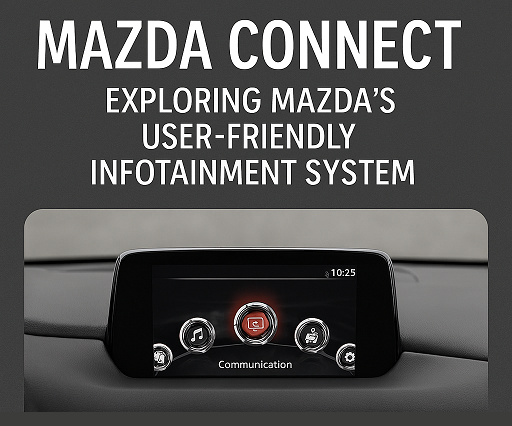
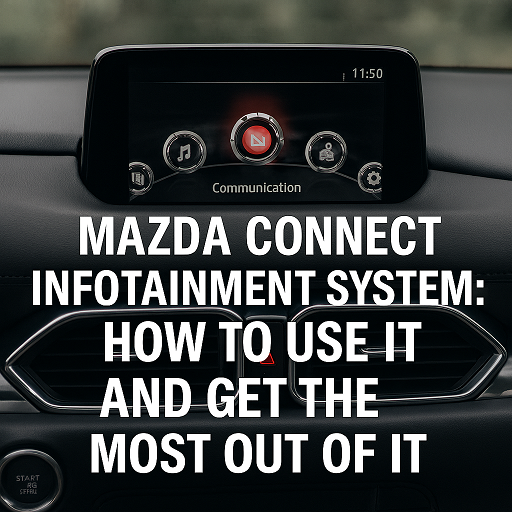
Mazda Connect is Mazda’s suite of in-car technology, which includes a range of multimedia, connectivity, and navigation features. Integrated with a touchscreen display, a control knob (known as the Commander Control), and smartphone integration, the system is designed to give you easy access to essential functions while keeping your focus on the road.
Key features of Mazda Connect include:
- Bluetooth connectivity for hands-free calls and music streaming.
- Voice commands for controlling navigation, calls, and media.
- Apple CarPlay® and Android Auto™ integration for seamless smartphone connectivity.
- Navigation and traffic updates for efficient route planning.
How to Use Mazda Connect
1. Getting Started: Connecting Your Smartphone
One of the first things you’ll want to do when you hop into your Mazda is connect your smartphone. Mazda Connect makes this easy with Apple CarPlay® and Android Auto™—two platforms that allow you to mirror your smartphone’s screen onto your Mazda’s infotainment screen.
How to Connect Apple CarPlay®:
- Plug your iPhone into the USB port using an Apple-approved lightning cable.
- Once connected, a message will appear on your screen asking if you want to enable Apple CarPlay. Select "Enable" to connect.
- After the connection is made, you can access apps like Maps, Spotify, Messages, and more right on your Mazda’s screen.
How to Connect Android Auto™:
- Plug your Android phone into the USB port using a compatible USB cable.
- A message will appear on the screen asking if you’d like to use Android Auto. Confirm your selection.
- Once connected, you can use apps like Google Maps, Spotify, Google Assistant, and more through the system.
Tip: For both Apple CarPlay® and Android Auto™, make sure your smartphone has the latest software updates to ensure smooth connectivity.
2. Using the Commander Control
The Commander Control is a unique feature of the Mazda Connect system. Located near the gear shifter, this dial allows you to control the infotainment system without having to touch the screen, minimizing distractions while driving.
Here’s how to use the Commander Control:
- Turn the dial to navigate through menus and options.
- Press down on the dial to select items or open menus.
- Use the four directional buttons to quickly access different features, such as Radio, Media, Navigation, and Settings.
This easy-to-use system allows for safe and precise control of your infotainment system while keeping your hands on the wheel and eyes on the road.
3. Voice Commands for Hands-Free Operation
Mazda Connect is equipped with voice recognition technology, allowing you to control many functions hands-free. Simply press the Voice Recognition button on your steering wheel to begin issuing voice commands.
Here are some common voice commands:
- “Call ” to make a phone call.
- “Play ” to start playing music.
- “Navigate to ” for turn-by-turn directions.
- “What’s the weather?” for a weather update.
Voice commands can help you keep your focus on the road while still having access to essential features like navigation, media, and communication.
4. Accessing Navigation and Traffic Updates
If your Mazda is equipped with the Mazda Navigation System, the infotainment system provides turn-by-turn directions and real-time traffic updates to help you get to your destination quickly and safely.
How to Use Navigation:
- Press the Navigation button on the home screen or use the Commander Control to select the Navigation option.
- Enter your desired destination using the touchscreen or voice commands.
- The system will provide real-time directions and traffic updates, and it will also reroute you in case of traffic delays.
Tip: Make sure to keep your navigation maps updated to ensure the most accurate and efficient routes. Updates can be done through a USB drive or using the Mazda SD card (depending on your model).
5. Bluetooth Connectivity for Calls and Music
One of the key features of Mazda Connect is the ability to connect your phone via Bluetooth. This allows you to make hands-free calls, listen to music, and stream podcasts without needing to touch your phone.
How to Connect via Bluetooth:
- Go to the Settings menu on the Mazda Connect screen and select Bluetooth.
- Follow the prompts to pair your phone with your vehicle. You may need to enter a pairing code or confirm the connection on your phone.
- Once connected, you can make and receive calls, stream music, or use any other Bluetooth-enabled apps.
Tip: Mazda Connect also supports SMS text message reading (for supported phones). You can listen to your incoming texts and reply using voice commands, keeping you safe and connected while driving.
Troubleshooting Common Mazda Connect Issues
1. Mazda Connect Won’t Pair with My Phone
If your phone isn’t connecting to Mazda Connect, here are a few things to check:
- Ensure Bluetooth is enabled on your phone.
- Make sure you are using a compatible USB cable if connecting via Apple CarPlay® or Android Auto™.
- Try disconnecting and reconnecting the phone to the system or restarting your phone.
- Reset the system by pressing and holding the power button for 10 seconds to reboot the system.
2. Navigation Not Showing Accurate Directions
If the navigation system isn’t providing accurate directions or isn’t loading properly:
- Ensure your maps are up to date.
- Check if the GPS signal is being blocked (e.g., by tall buildings or tunnels).
- You may need to perform a system reset or update the navigation software via USB or SD card.
3. Apple CarPlay® or Android Auto™ Not Working
If Apple CarPlay® or Android Auto™ is not connecting:
- Make sure your smartphone’s software is up to date.
- Try using a different USB port if available.
- Check that CarPlay or Android Auto is enabled in your phone’s settings.
Conclusion
The Mazda Connect Infotainment System is packed with features designed to enhance your driving experience. From seamless smartphone integration with Apple CarPlay® and Android Auto™ to hands-free calling and navigation, Mazda Connect helps you stay connected while keeping your focus on the road.
Whether you’re a tech-savvy driver or a first-time user, understanding how to use and troubleshoot Mazda Connect will help you get the most out of your vehicle’s technology. At Beach Mazda, we’re here to assist you with any questions or concerns you may have about using Mazda Connect or any other feature of your Mazda vehicle.
Beach Mazda
Your Trusted Mazda Experts in Myrtle Beach
If you’re ready to learn more or have questions about Mazda Connect, feel free to contact us or visit our service center today! We’re always happy to help!